

JavaScript DOM (Document Object Model)
What is DOM?
DOM (Document Object Model) is a way to represent a web page so that JavaScript can understand it. It acts as a bridge between JavaScript and HTML/CSS. Using the DOM, JavaScript can access, change, add, or remove elements and styles on a webpage. In simple words, the DOM allows JavaScript to access and update the web page.
Relationship Between HTML, CSS, JavaScript & DOM
| Technology | Role |
|---|---|
| HTML | Structure (Skeleton) |
| CSS | Style (Design) |
| JavaScript | Behavior (Actions) |
| DOM | Connector |
DOM connects JavaScript with HTML & CSS
Real-Life Example (Remote Control)
Think of a TV:
• TV screen = Website
• Buttons = DOM methods
Without a remote:
• You can’t change the channel
• You can’t increase volume
DOM = Remote control of the webpage
Example -
<p id=”text”>Click the button to change my style</p>
<button onclick=”changeStyle()”>Change Style</button>
<script>
function changeStyle() {
let element = document.getElementById(“text”);
element.style.color = “white”;
element.style.backgroundColor = “blue”;
element.style.fontSize = “22px”;
element.style.padding = “10px”;
}
</script>
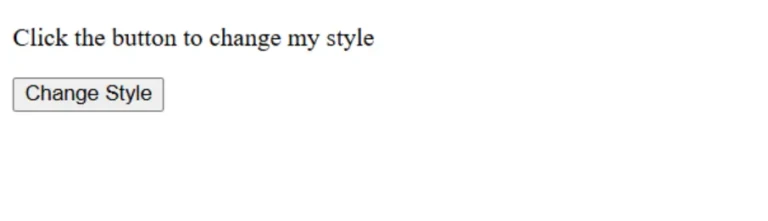
OUTPUT (Before):
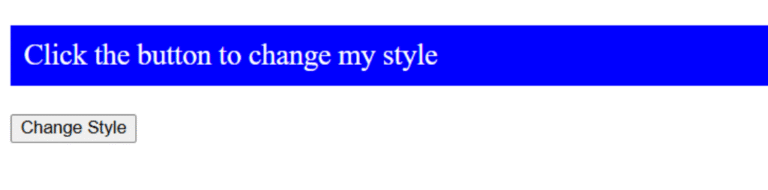
OUTPUT (After):
Text color, background, font size, and padding change when the button is clicked.
Why is DOM Important?
1. Change Content Without Reload
JavaScript can update content without refreshing the page.
Example:
<h2 id=”message”>Click the button</h2>
<button onclick=”changeText()”>Click Me</button>
<script>
function changeText() {
document.getElementById(“message”).innerText = “Thank You!”;
}
</script>
OUTPUT (Before):

OUTPUT (After):
After clicking a button → It shows “Thank You!”

2. Respond to User Actions
DOM helps JavaScript react when users:
• Click buttons
• Type in inputs
• Submit forms
Example:
<button onclick=”showAlert()”>Click Me</button>
<script>
function showAlert() {
alert(“Button was clicked!”);
}
</script>
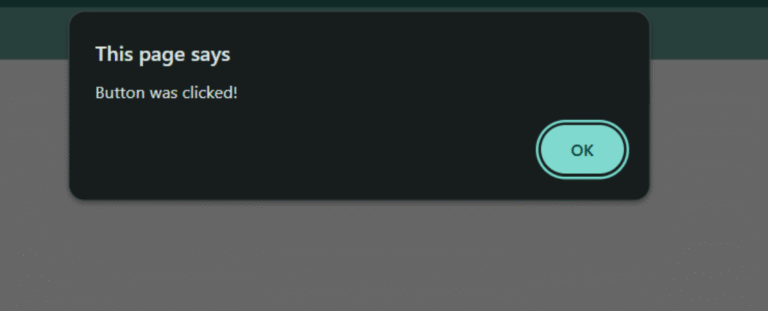
OUTPUT:
Show alert when a button is clicked.
3. Control Forms
Using DOM, JavaScript can:
• Validate inputs
• Show error messages
• Stop wrong submission
Example:
<form onsubmit=”return checkForm()”>
Email: <input type=”text” id=”email”><br><br>
Password: <input type=”password” id=”password”><br><br>
<button type=”submit”>Submit</button>
</form>
<p id=”msg” style=”color:red;”></p>
<script>
function checkForm() {
let email = document.getElementById(“email”).value;
let password = document.getElementById(“password”).value;
if (email === “” || password === “”) {
document.getElementById(“msg”).innerText =
“Email and Password are required!”;
return false; // stop form
}
}
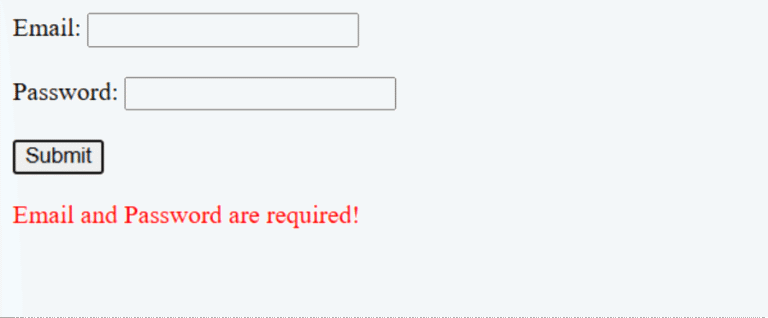
OUTPUT:
Check if email or password is empty.
How Does the DOM Work?
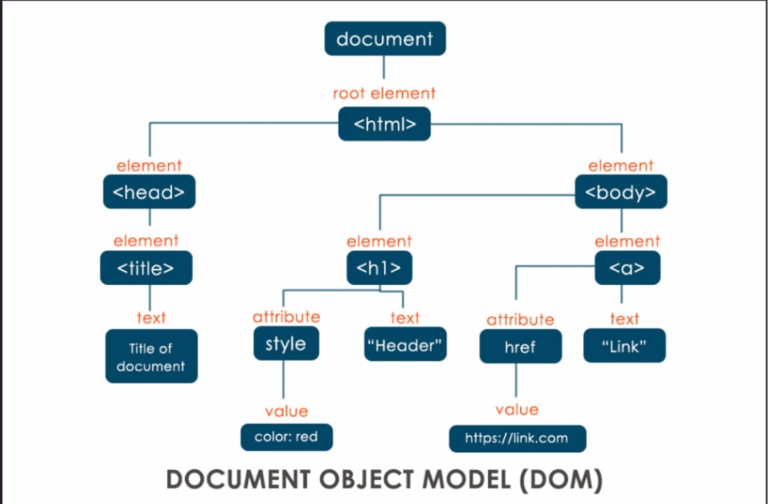
1. Browser reads HTML
2. Converts it into a DOM Tree
3. JavaScript accesses elements using this tree
Every HTML tag becomes a node in the DOM tree
DOM Tree –
Course Video
Course Video English:
YouTube Reference :
1) JavaScript DOM Introduction Tutorial in Hindi / Urdu
2) JavaScript DOM Tutorial #1 – Introduction in English
The Document Object Model (DOM) is a programming interface that represents HTML and XML documents as a tree structure, enabling dynamic content updates. Learn more in our JavaScript DOM free course.
The DOM represents an HTML document as a hierarchical tree where elements like <div> or <p> are nodes. This is explained in detail in our Free JavaScript DOM Tutorial for Beginners.
You can select elements using methods like:
- document.getElementById()
- document.querySelector()
- document.querySelectorAll()
- document.getElementsByClassName()
Check out the JS DOM manipulation free course video for practical examples.
You can update content using the .innerHTML or .textContent property.
Example:
document.getElementById(“example”).innerHTML = “Updated Text”;
Learn this technique step-by-step in our JavaScript DOM with free tutorial.
DOM events, such as clicks, keypresses, or mouse movements, allow you to respond to user interactions. These concepts are covered in the Free JavaScript DOM Tutorial for Beginners.
- addEventListener: A modern approach that allows attaching multiple event handlers to the same event.
- Inline event handlers: Defined directly in HTML, less flexible (e.g., onclick=”myFunction()”).
Explore this in our JavaScript DOM free course.
Yes, use methods like document.createElement() and appendChild() to add elements dynamically. Learn more in our JS DOM manipulation free course video.
Use the .remove() or .removeChild() methods to delete elements.
Example:
document.getElementById(“example”).remove();
Check out the JavaScript DOM with free tutorial for hands-on examples.
- innerHTML: Updates or retrieves the content inside an element.
- outerHTML: Includes the element itself along with its content.
Find a detailed explanation in our Free JavaScript DOM Tutorial for Beginners.
Use the DOMContentLoaded event to ensure your script runs only after the DOM is ready.
Example:
document.addEventListener(“DOMContentLoaded”, function () {
console.log(“DOM fully loaded and parsed”);
});
Learn this concept in the JS DOM manipulation free course video.